
State Observer and Controller Design for an Inverted Pendulum on a Cart 
Procedure
Steps to perform the simulation
- Enter the parameter values of the Inverted Pendulum on cart.
- Click on 'State Space Model' button to get the state space form of the system.
- Click on ' Enter the Pole Location' button to enter the desired pole values.
- Enter the desired pole values.
- Click on 'Design' dropdown button and select the desired option for calculating the design.
- Click on the 'Run' button to run the selected design.
- Click on the 'Rank' or 'Determinant' or "Inference' buttons to get the the Controllability test information and state feedback gain values.
- Enter the required values and click on the 'Closed Loop Response' button to generate the plot.
- Note for State Feedback: Enter the initial position value between -10 m to +10 m and enter the initial angle value between -6 ° to +6 ° (as per the practical experiment point of view). Click on the "Closed Loop Response" button.
- Click on the 'Rank' or 'Determinant' or "Inference' buttons to get the the Observability test information and observer gain values.
- Enter the required values and click on the 'State Estimation Response' button to generate the response plot.
- Note for Observer: Enter the initial position value between -10 m to +10 m (as per the practical experiment point of view). Click on the "State Estimation Response" button.
- Click on 'Download' button to download the plot.
- Click on 'Clear' button to enter the new parameter values of the system.
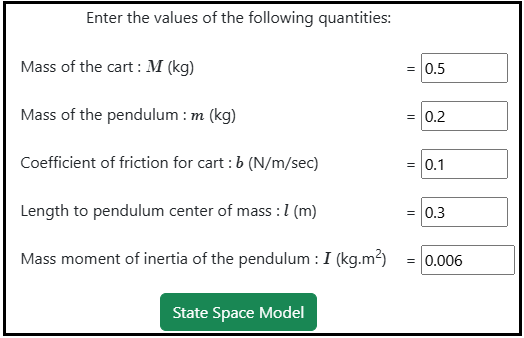
Fig. 1. Parameter values of the Inverted pendulum on cart
Fig. 2. Button to get the state Space form of the system
Fig. 3. Button to enter the desired pole values
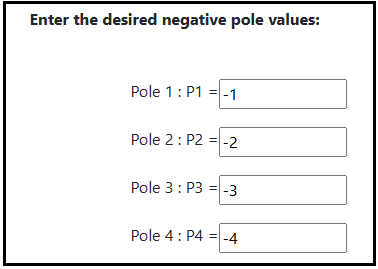
Fig. 4. The desired pole values
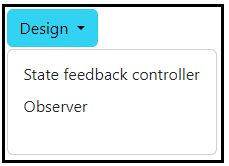
Fig. 5. Dropdown button for selecting the required design option
Fig. 6. Run button to calculate the selected design
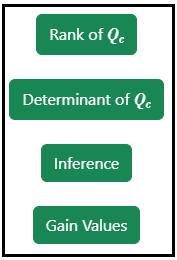
Fig. 7. Rank, Determinant and Inference of the Controllability test
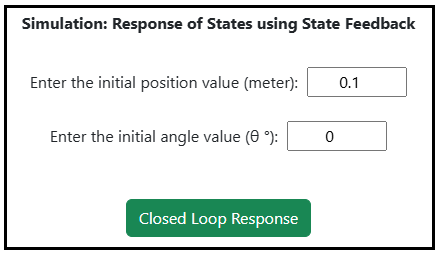
Fig. 8. Closed Loop Response button to get the plot
Fig. 9. Rank, Determinant and Inference of the Observability test
Fig. 10. State Estimation Response button to get the plot